The institution console, screen by screen.
The institution console shows which of your staff have finished which HelloAI module, and puts your own policies next to our courses. This walkthrough shows each screen with sample data for Corvale Health, a fictional hospital group.
Every name, email address and figure on these screens is invented.
At a glance
- See who has finished which HelloAI module, and whose certificate expires soon.
- Build your own programs from HelloAI units, and add your own policies and courses next to them.
- Your staff are told exactly what you can see. Quiz answers, scores and time spent are never shared.
- Every action, including the HelloAI team's, is written to a log your admins can read.
Your staff's progress
Who has finished which module, whose certificate runs out soon, and who has not started.
Everyone linked to your institution, on one page.
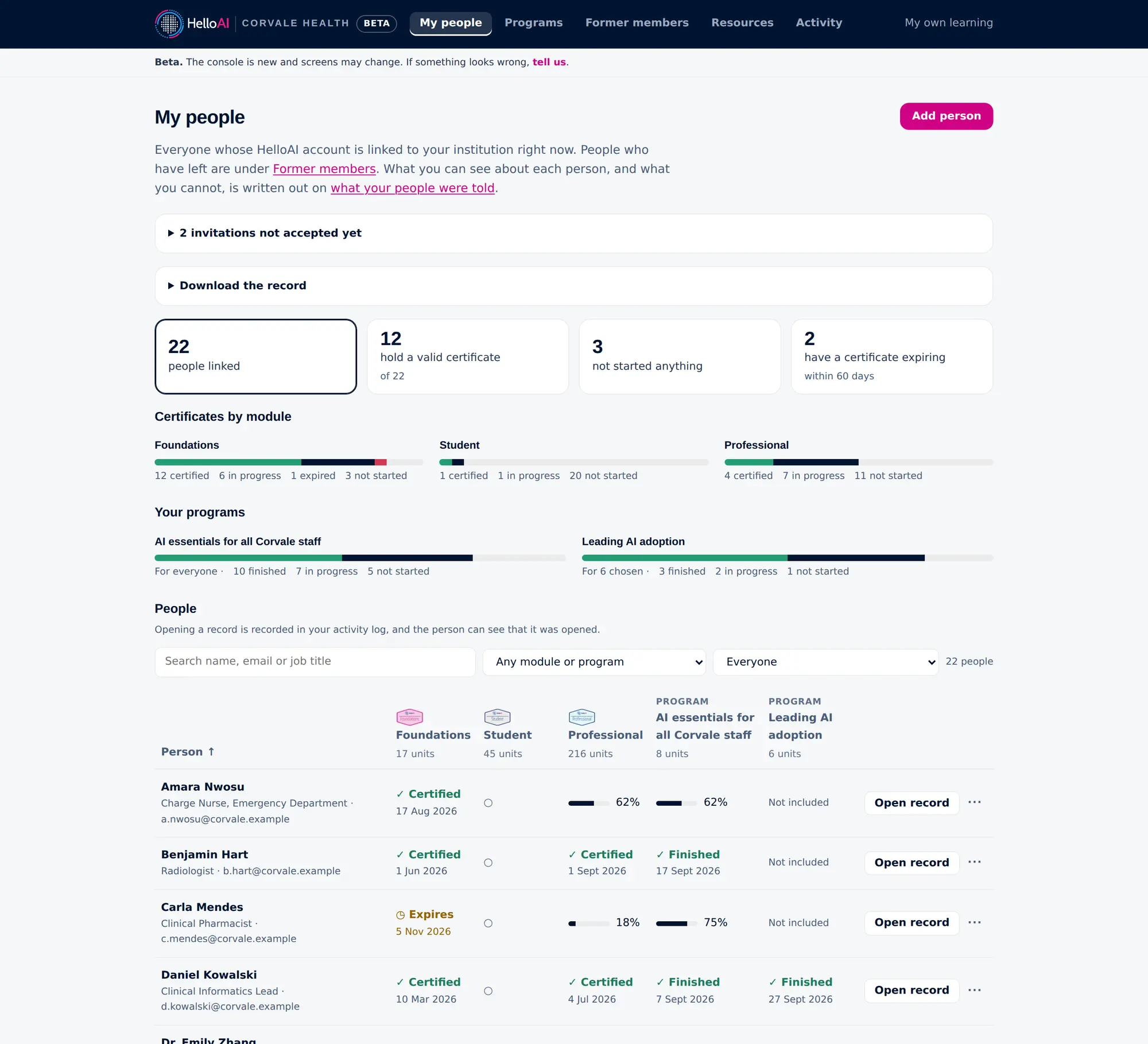
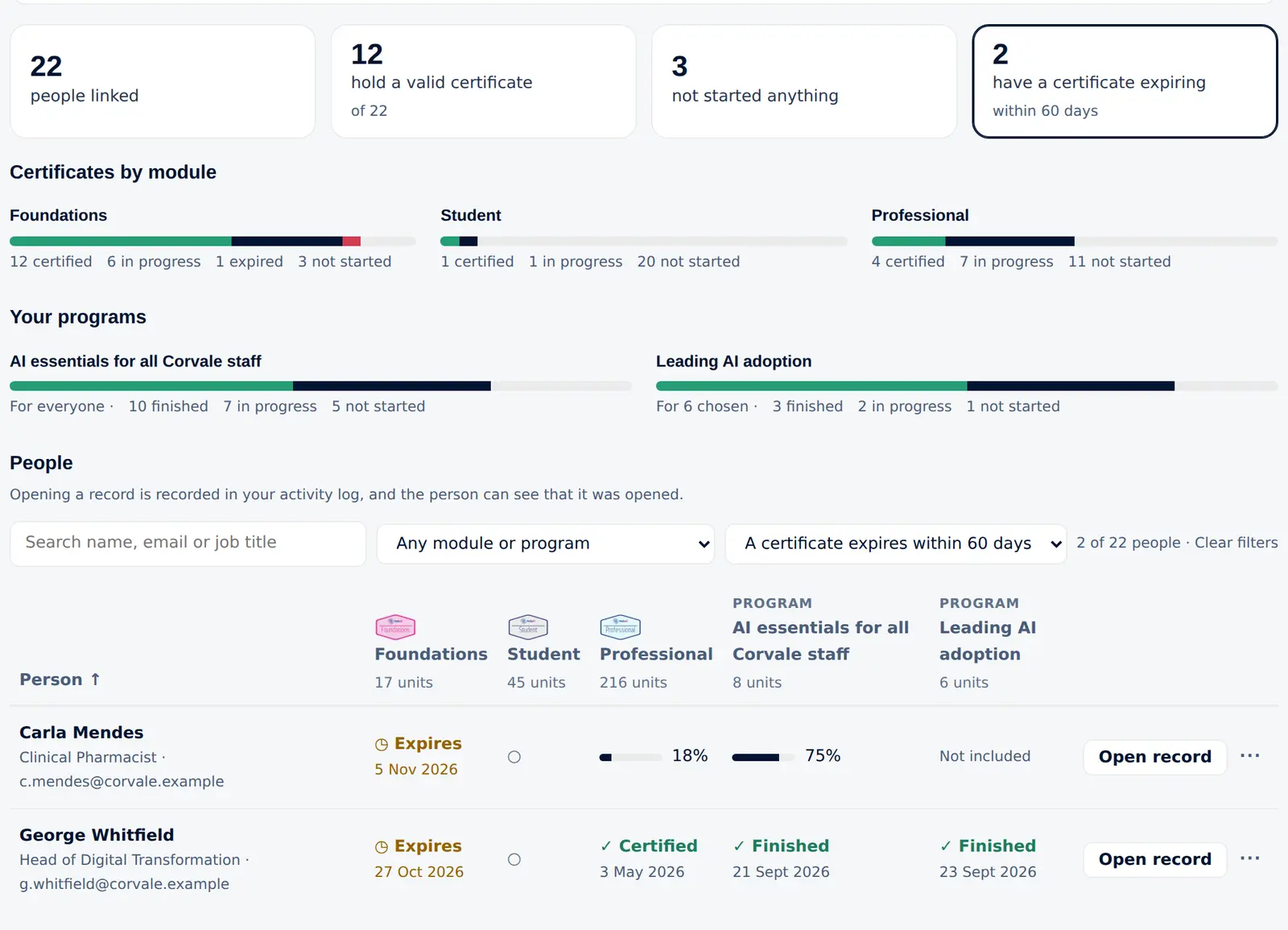
My people lists every person whose HelloAI account is linked to your institution. Four tiles at the top show how many people are linked, how many hold a valid certificate, how many have not started anything, and how many have a certificate that expires within 60 days. Below them, one bar per module shows how far each module has reached across your staff. Each tile also filters the list.
One column per module, in plain words.
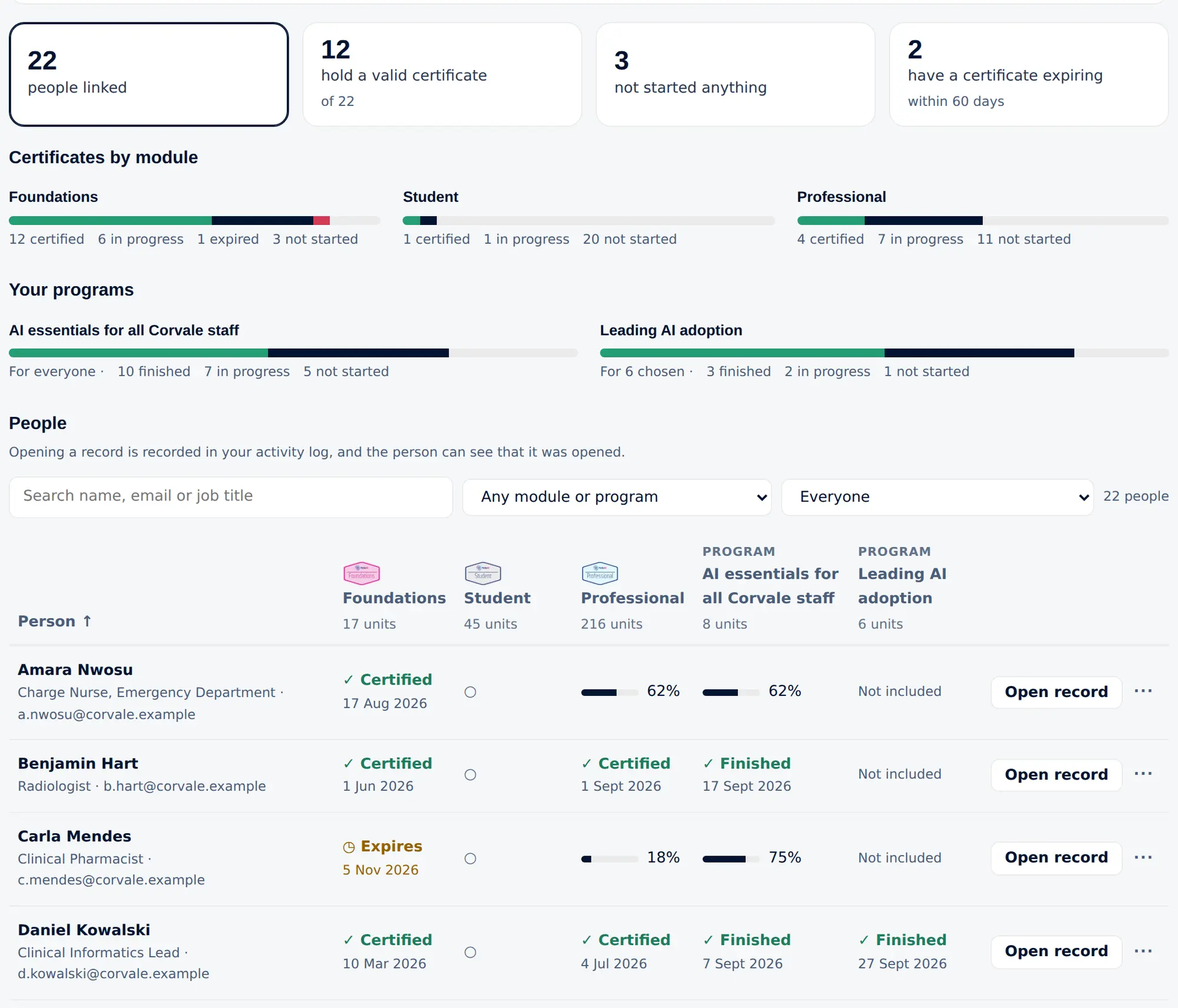
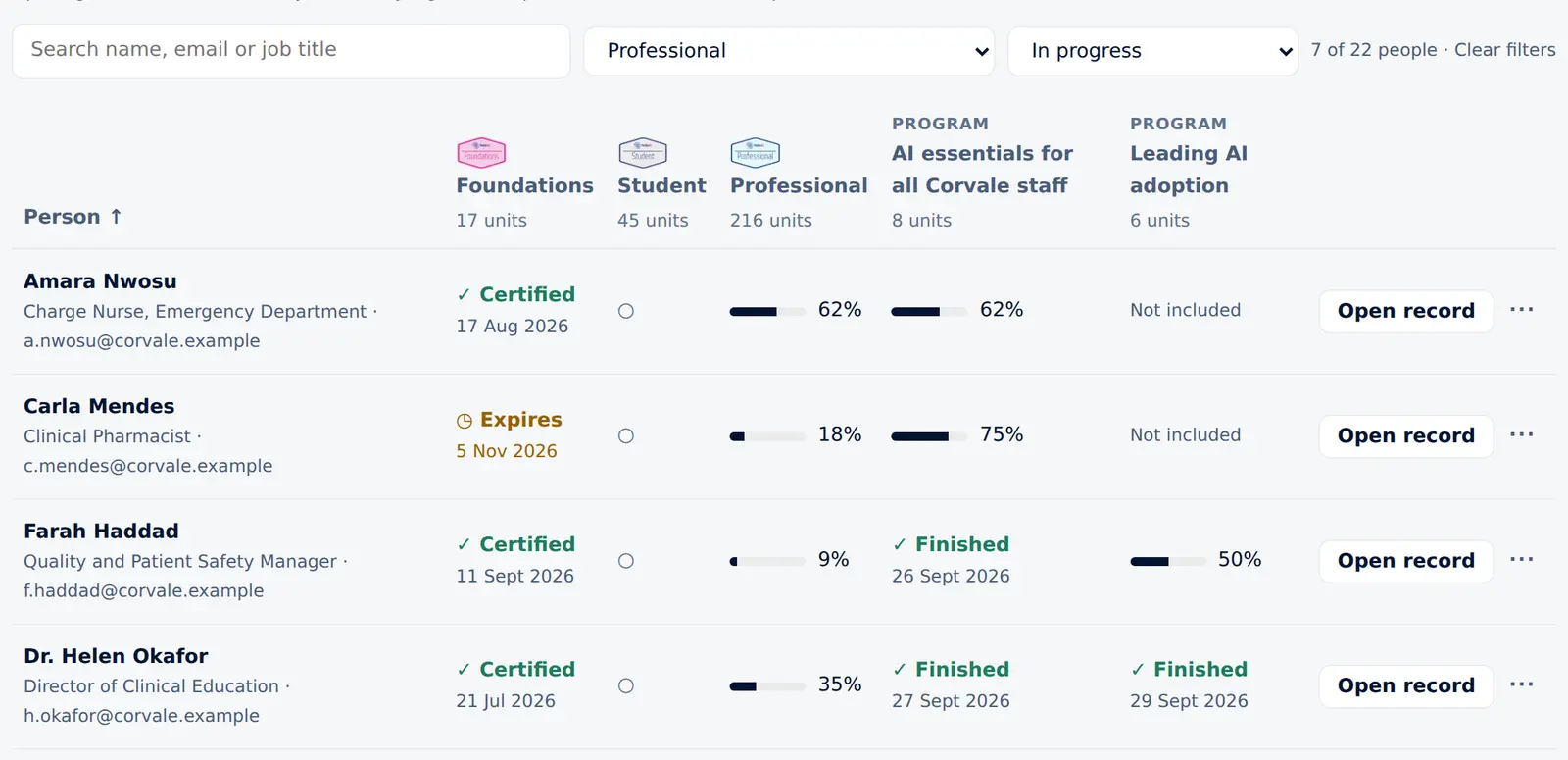
Each person has one row, and each module has one column. A cell reads Certified, Expires, Expired, a percentage while the module is in progress, or an empty circle when it has not been started. The percentage stops at 99 until the certificate is issued. Progress is never added up across modules, so a short module and a long one are never merged into a single figure.
Find the people who need a reminder.
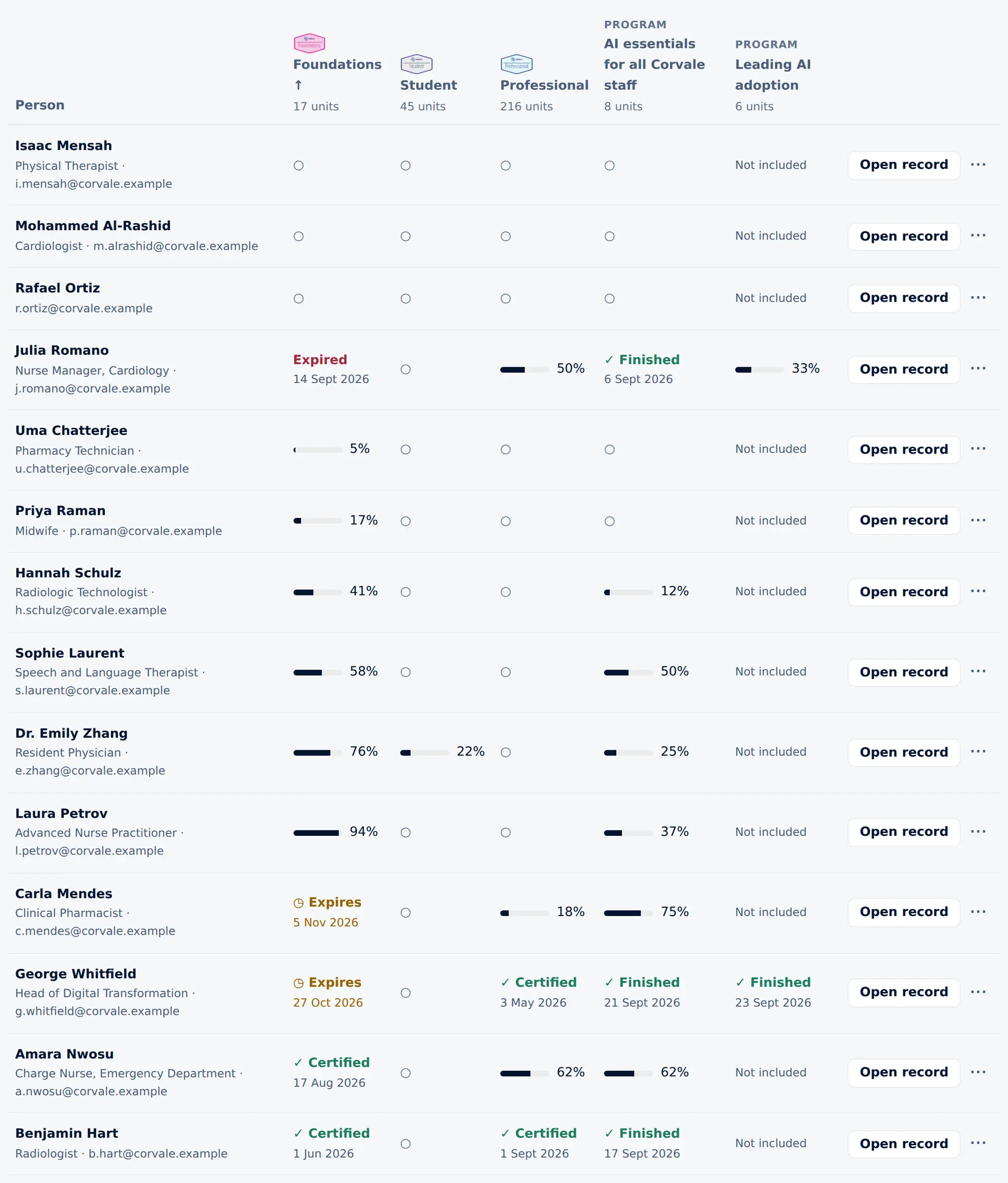
Search by name, email address or job title, and narrow the list by module and by state. A filtered view is kept in the page address, so it can be bookmarked and opened again later.
A full record for each person.
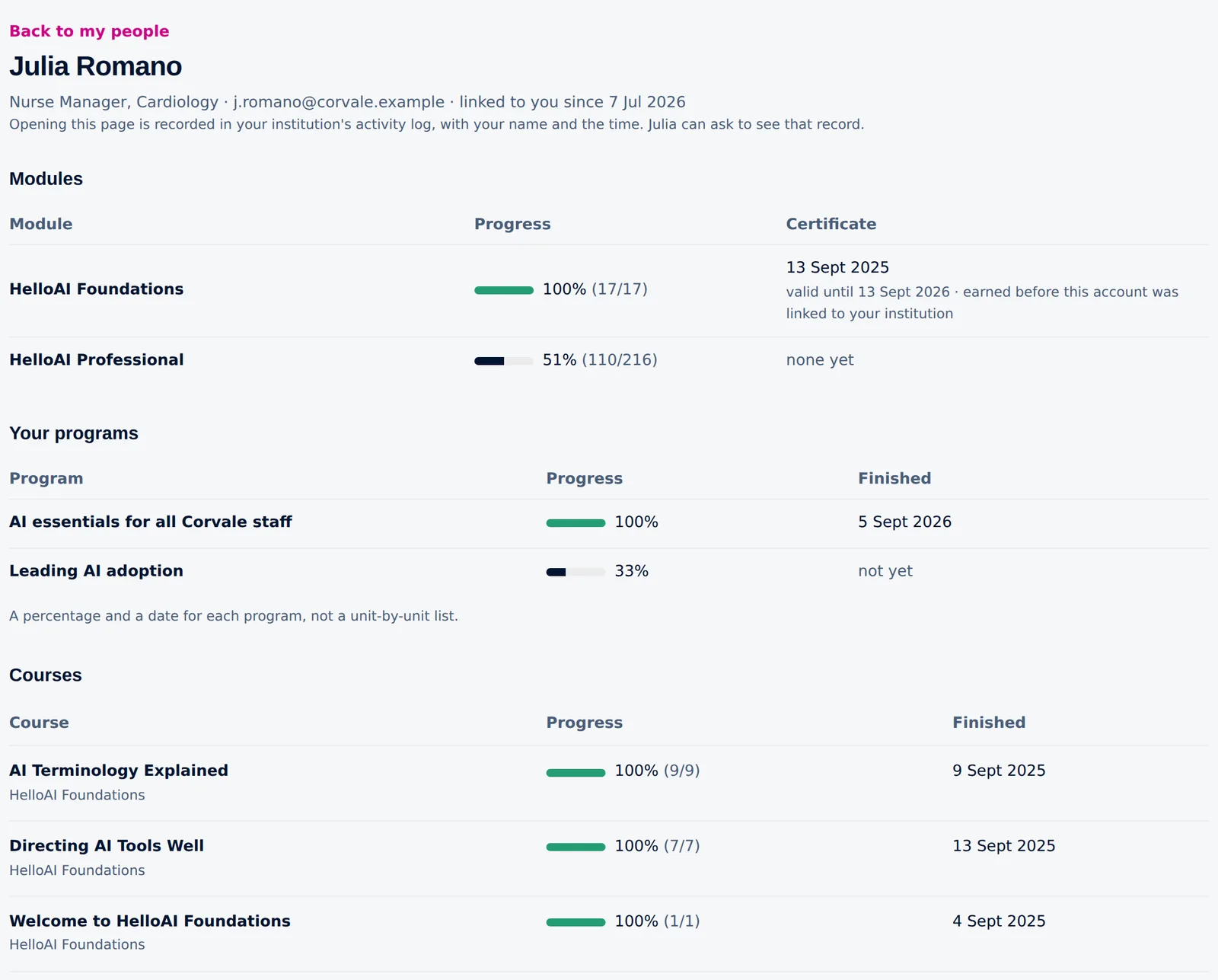
Open record, on each row of the list, shows each module and each course the person has started, with progress, completion dates and how long each certificate stays valid. Courses not started yet are listed under a single line. Work finished before the account was linked to your institution is marked as such.
Each time an admin opens a record, the access is written to your activity log. The list says so above the first row, and the record states it at the top.
Privacy and accountability
What your staff are told, what is recorded, and who may do what.
Your staff can read exactly what you see.
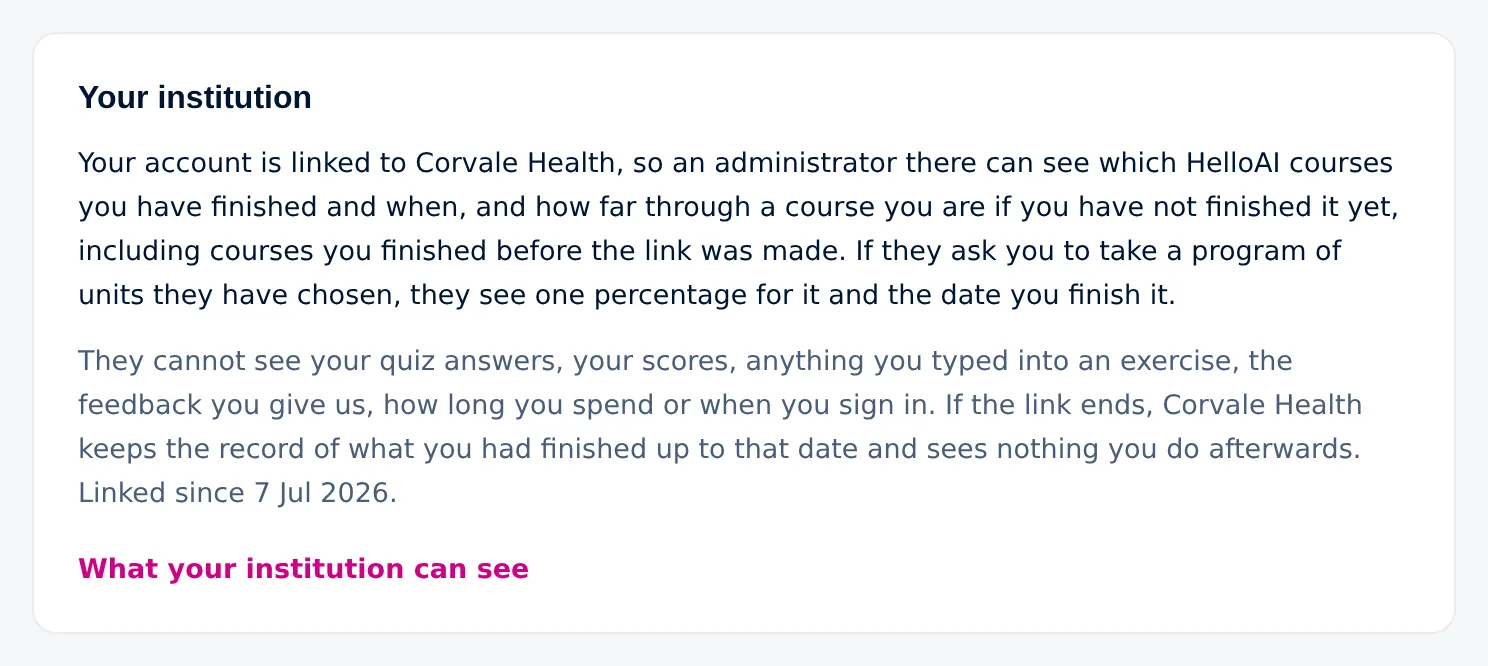
Every linked learner sees a notice on their profile page that names the institution and explains what it can and cannot see. The notice links to a public page with the full lists, which your data protection team can read as well.
Your admins see
- Name, email address and job title.
- Which courses and modules were finished, and when.
- Certificates, and whether they are still valid.
- How far through a course a person is, if they have not finished it.
- How far through a program a person is, and the date they finished it.
- What was completed before the link was made.
Your admins never see
- Quiz answers or scores.
- Anything typed into an exercise.
- Feedback given to HelloAI.
- How long someone spends, or when they sign in.
- What people told HelloAI about themselves when they joined.
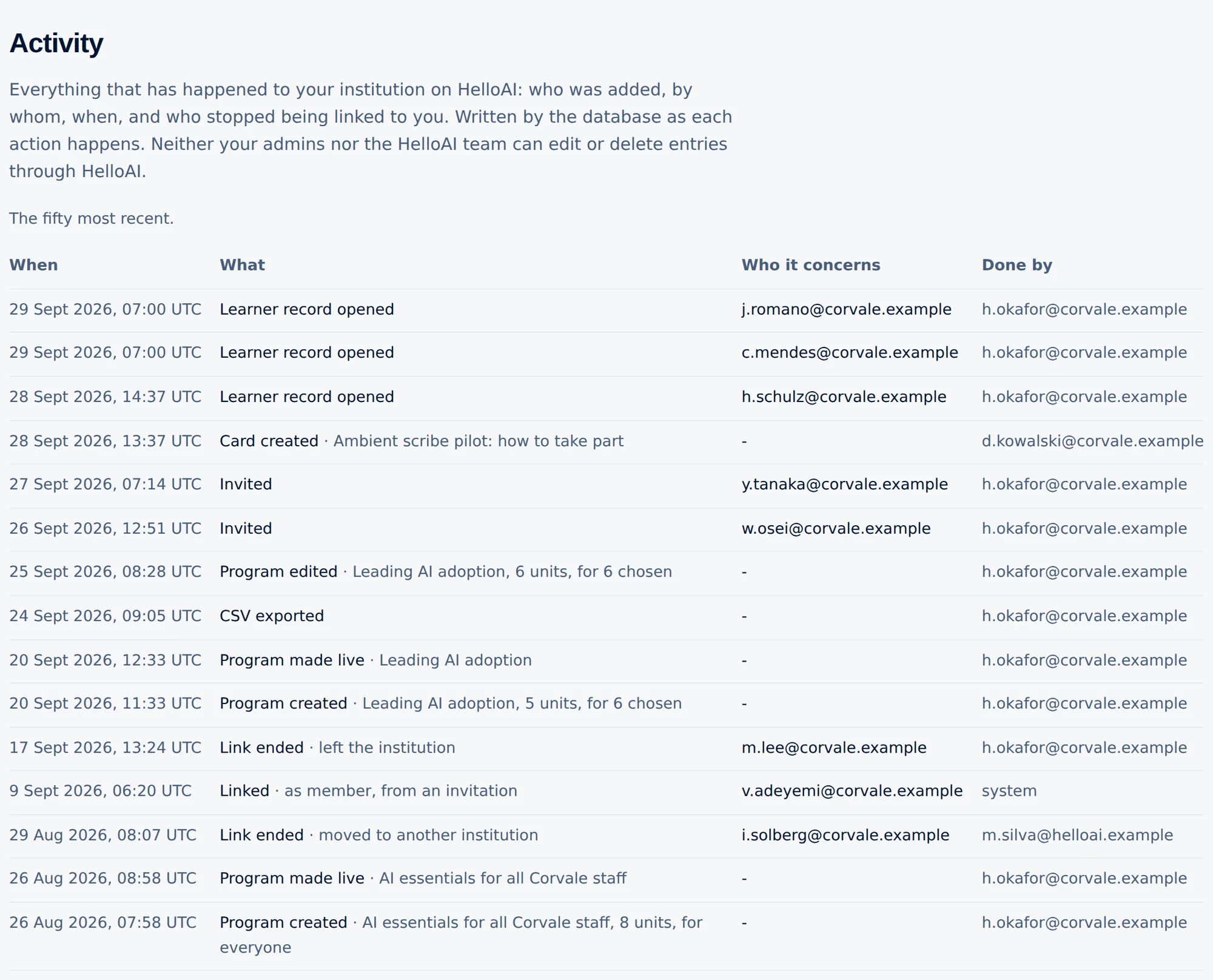
Every action is recorded, including ours.
The activity log lists who was linked and how, role changes, ended links, invitations, learner records opened, exports and changes to programs and resource cards. It also shows each time the HelloAI team opened your institution. When your email domain links many accounts at once, they appear as one entry that opens to list every address. The database writes each entry as the action happens. Neither your admins nor the HelloAI team can edit or delete entries through HelloAI.
Two roles, both appointed by the HelloAI team.
The institution admin runs the console: people, programs, former members, resources and the activity log. The institution editor writes and publishes resource cards and sees nothing about people, which suits an intranet or clinical informatics lead.
Only the HelloAI team appoints institution admins and changes roles, and each change is recorded in the activity log.


Would you like to see it with your own questions in mind?
Your own programs and material
Your own path through HelloAI units, and your policies, intranet courses and contacts, placed where your staff are learning.
Your own path through HelloAI units.
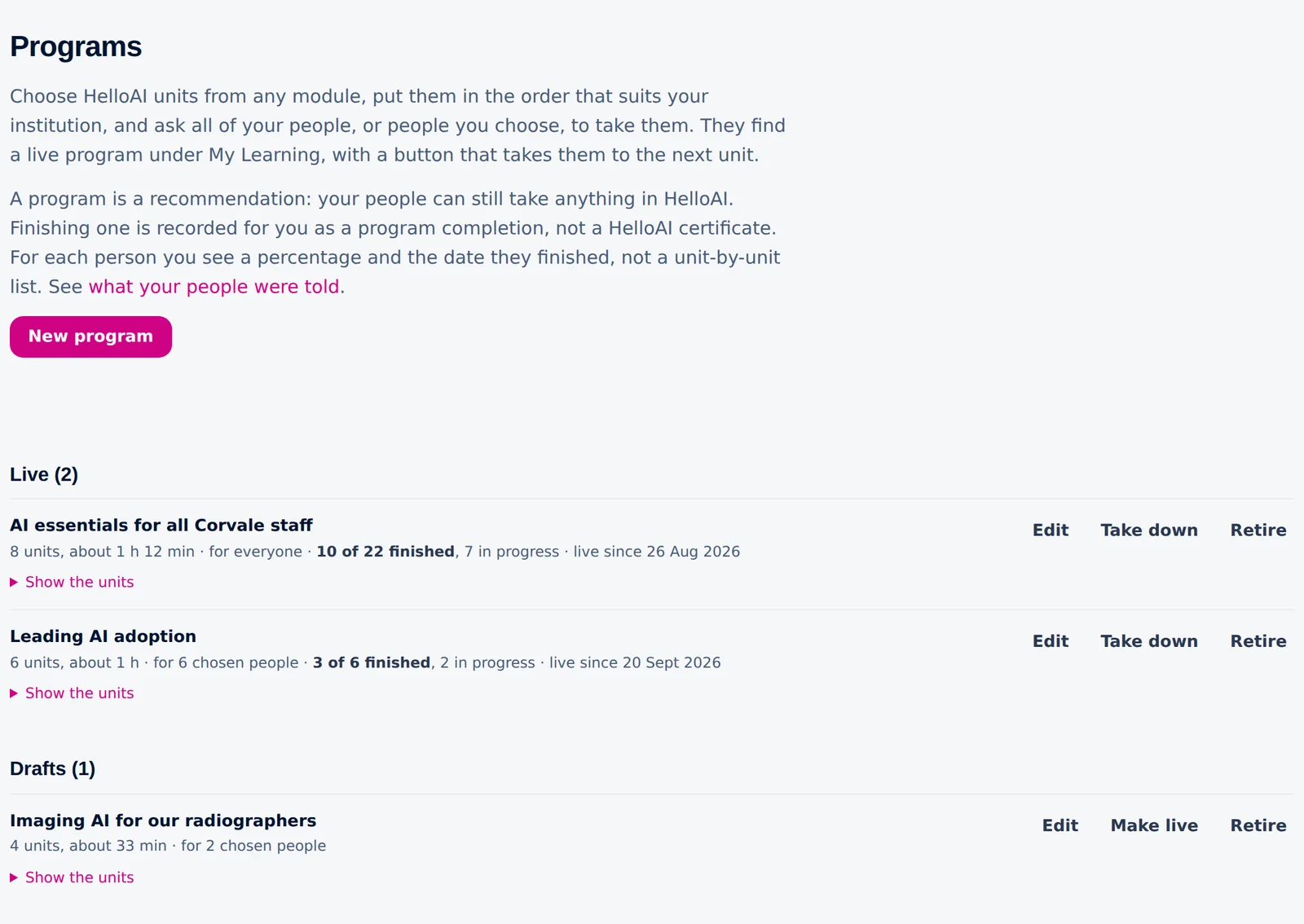
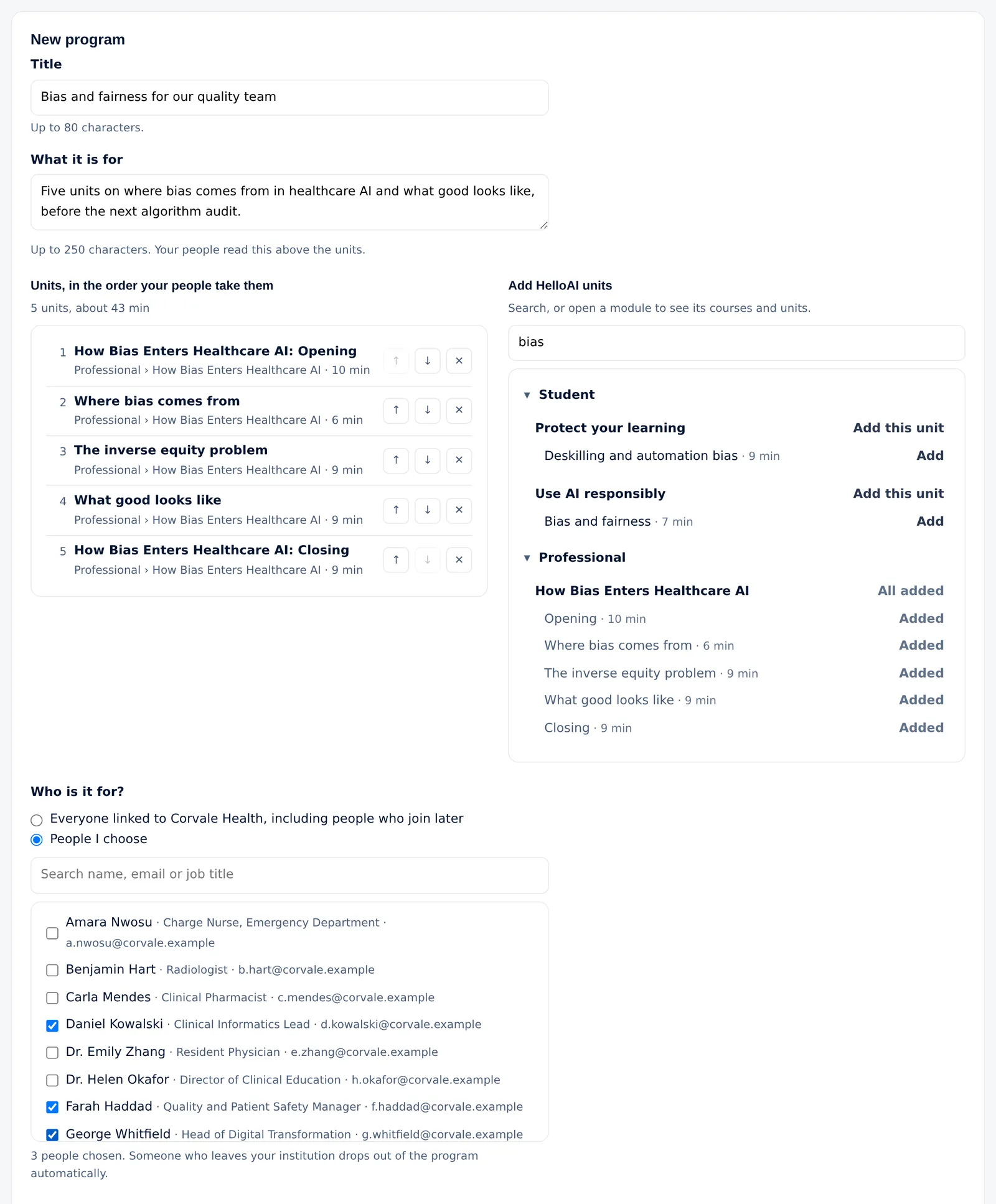
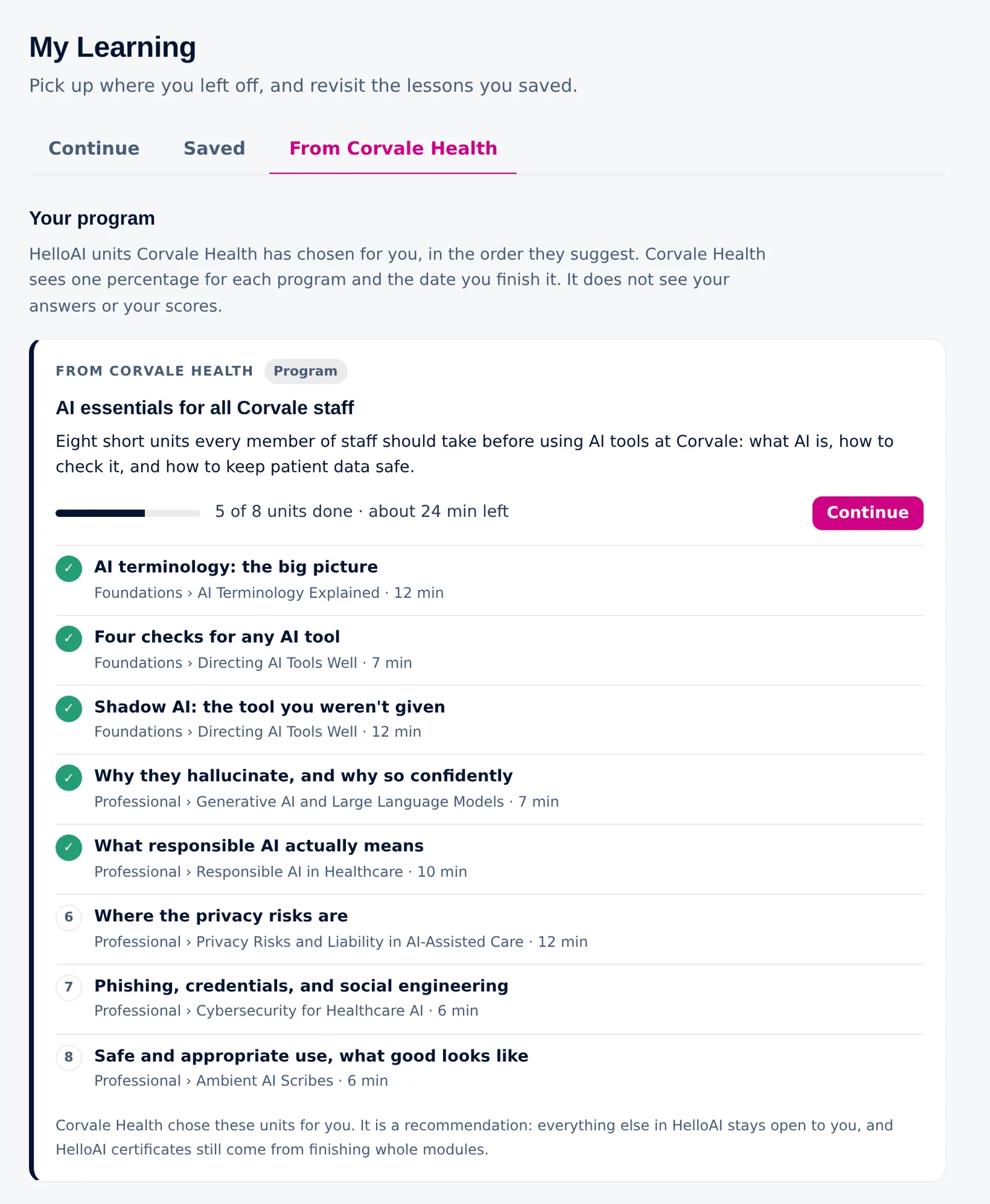
A program is your institution's own selection of HelloAI units, taken from any module and put in the order that suits you. Give it to everyone linked to your institution, including people who join later, or to the people you choose. You can run several programs at once, and keep one as a draft until it is ready.
A program is a recommendation. Your staff can still take anything in HelloAI, and HelloAI certificates still come from finishing whole modules. When someone finishes a program, your institution keeps a record of the date. Programs are part of your institution's package.
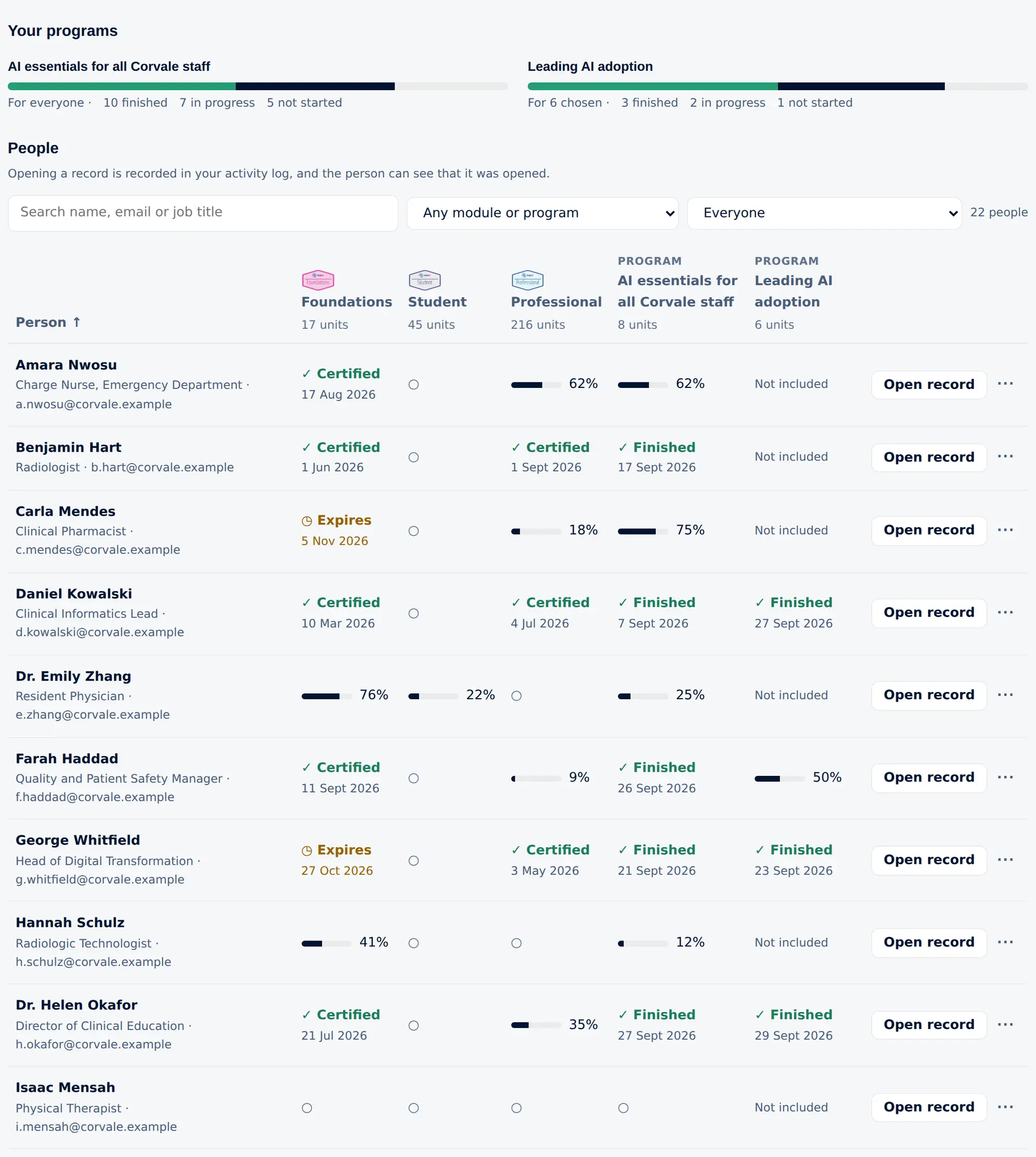
A percentage and a date, nothing more.
Each live program gets a bar, a column and a filter in My people, so you can see who has finished and who has not started. A cell shows how far through the program a person is, or the date they finished it. It is one number per program, not a unit-by-unit list, and your staff are told exactly what you see.
A clear next step in My Learning.
Your staff find the program in My Learning, under your institution's name, with their own progress on each unit and a button that opens the next one. The units open in HelloAI as usual, so progress on a program is simply progress in HelloAI.
Your own material next to our courses.
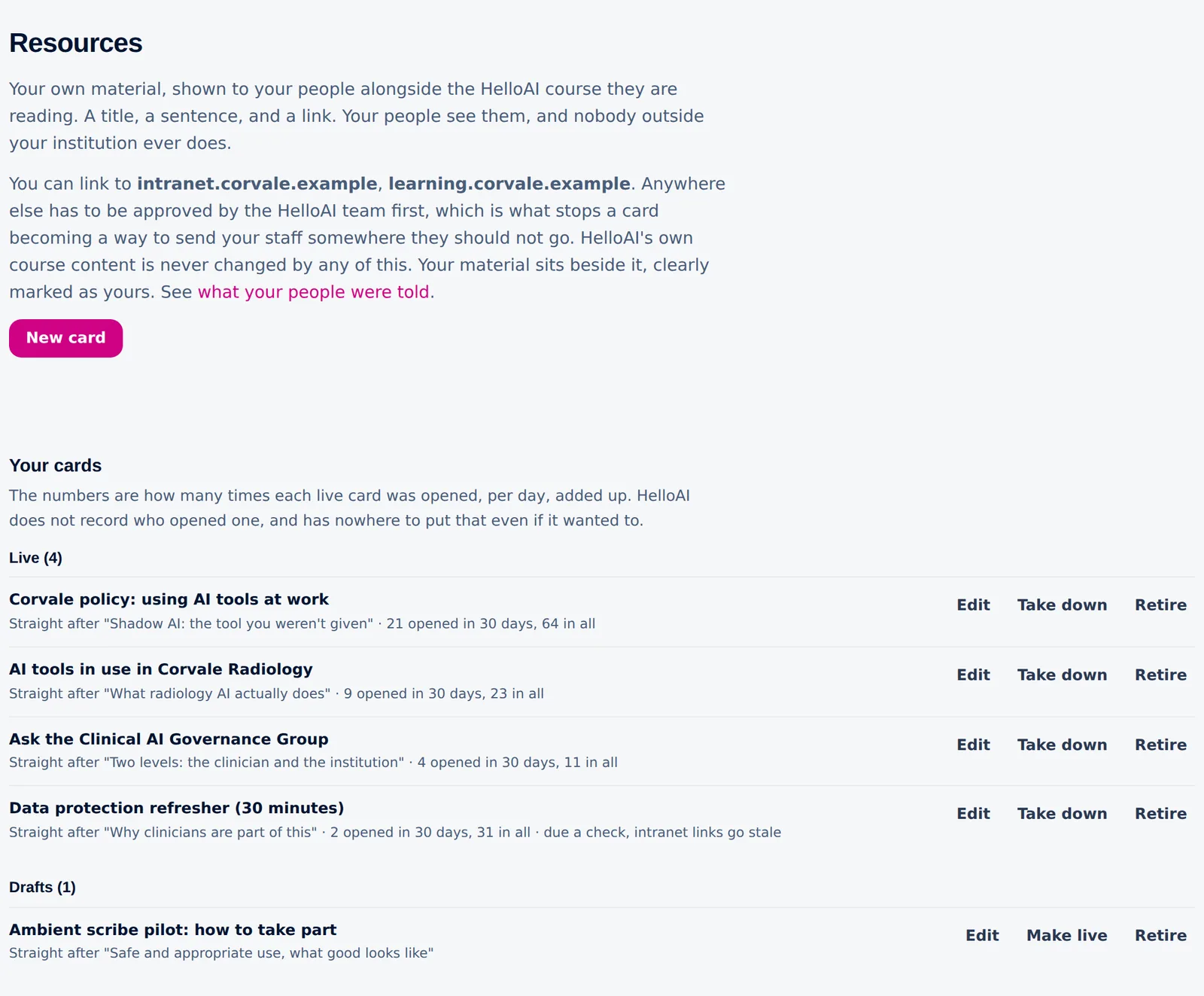
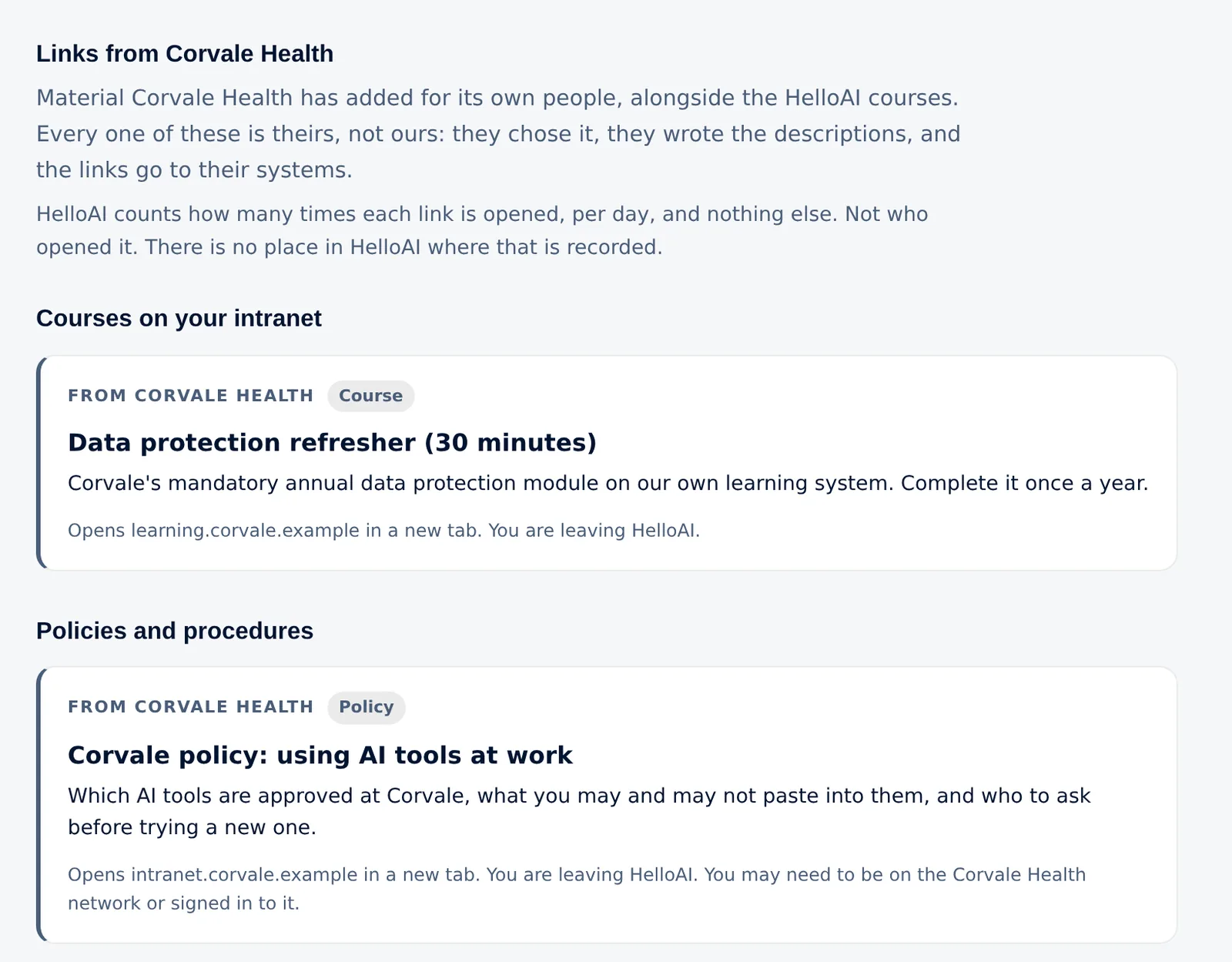
Resource cards add your institution's own material to HelloAI: a policy, a course on your intranet, a video, or the person to contact. Each card is a title, one sentence and a link, and it can link only to web addresses the HelloAI team has approved for your institution.
The list shows how often each live card was opened. HelloAI does not record who opened a card. Cards past their review date are flagged, because intranet links go out of date.
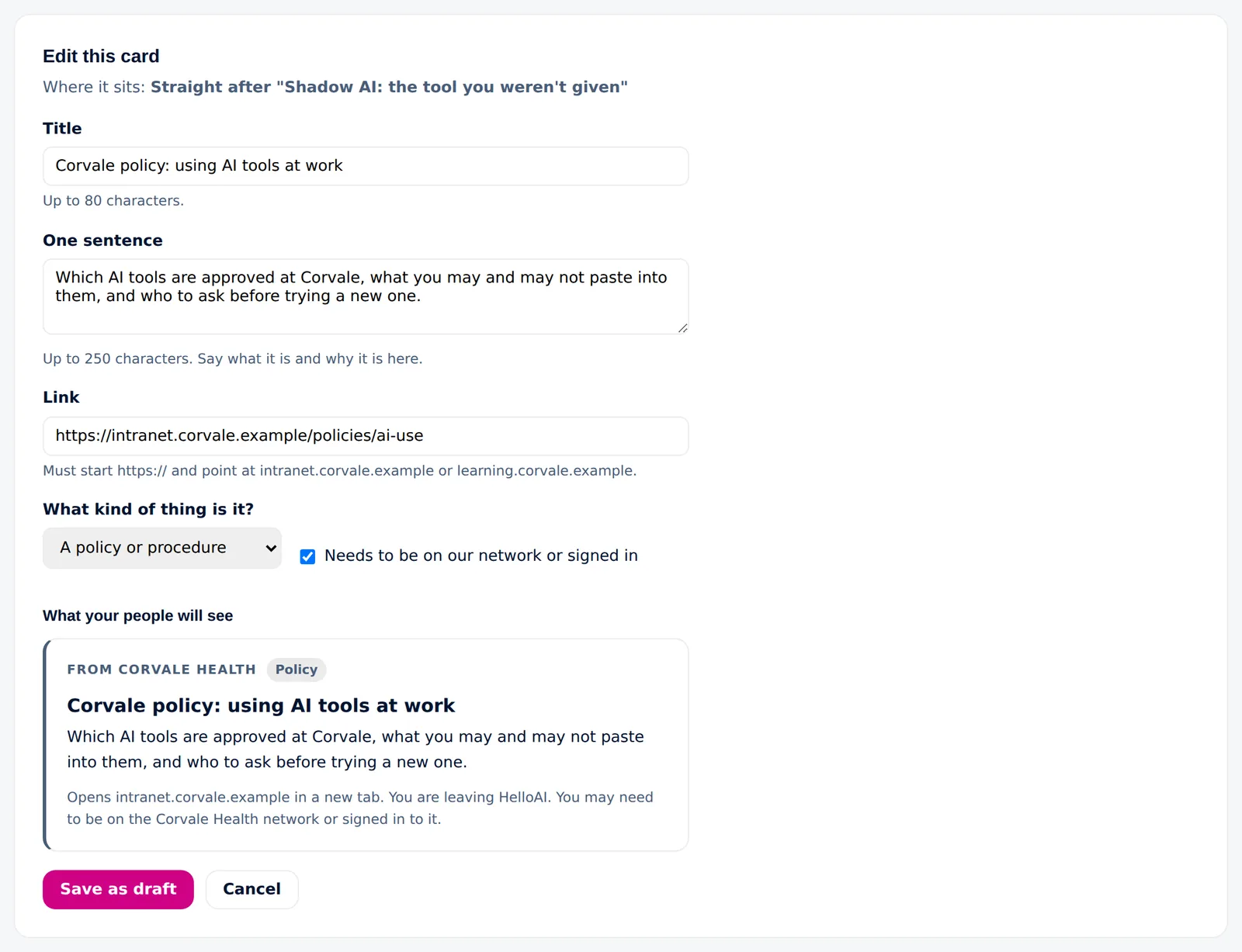
Choose the place, then write the card.
A card can sit after a unit, at the start or end of a section, on a course or module page, or on your institution's own page only. The editor shows a preview of the card exactly as your staff will see it.
A card is saved as a draft and made live when it is ready. It can be taken down or retired at any time; for a live card, the console asks first. HelloAI's own courses stay as they are.
Your material where your staff are learning.
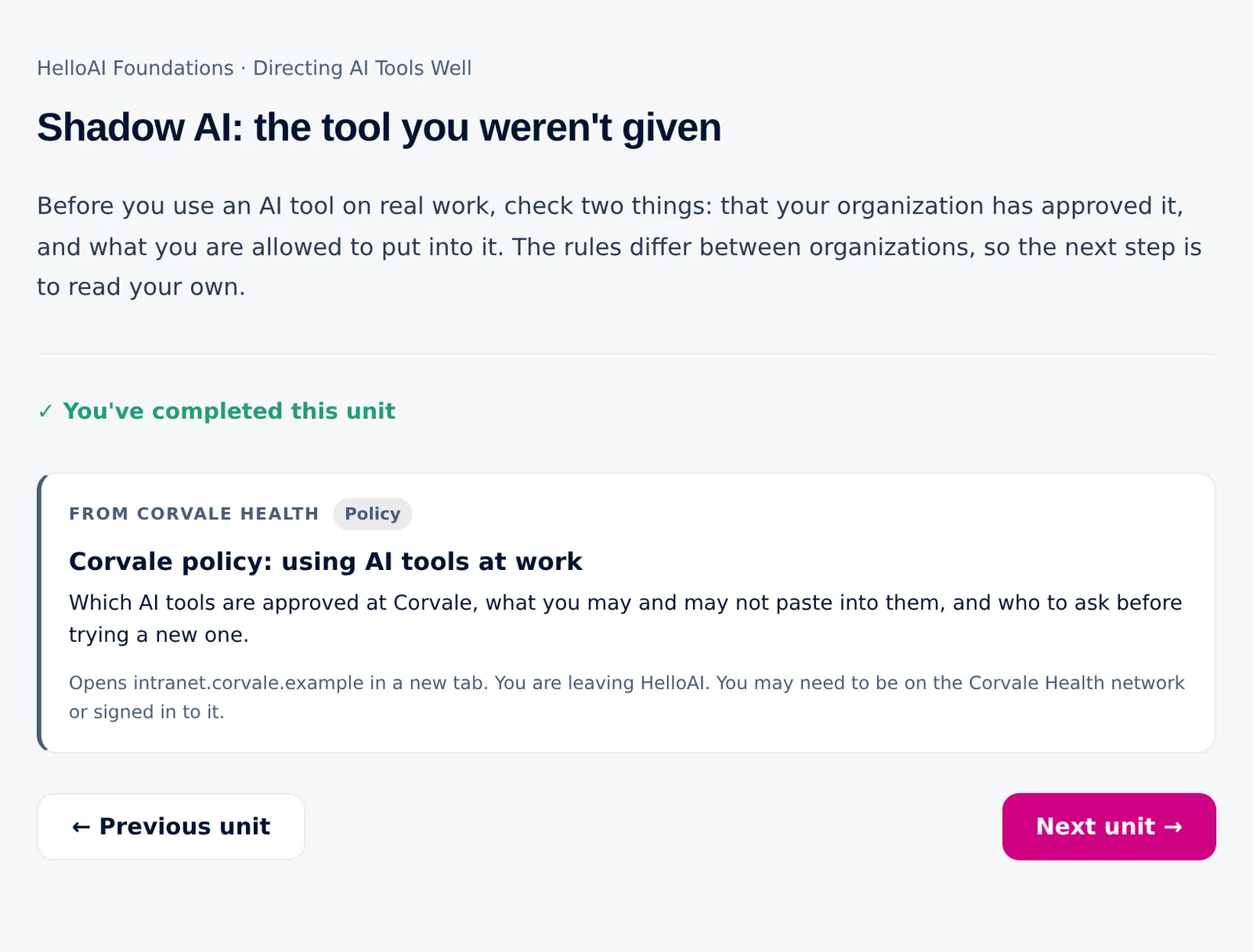
A card appears at the end of the unit it belongs to, below the unit and above the buttons to continue. It carries your institution's name and the kind of material, and it states where the link leads.
My Learning gains a tab named after your institution that lists every live card, grouped by kind. Only your own staff see your cards, and learners who are not linked to an institution see no change.
Running the console
For institution admins: getting in, adding people, and what happens when someone leaves.
Where your admins find the console.
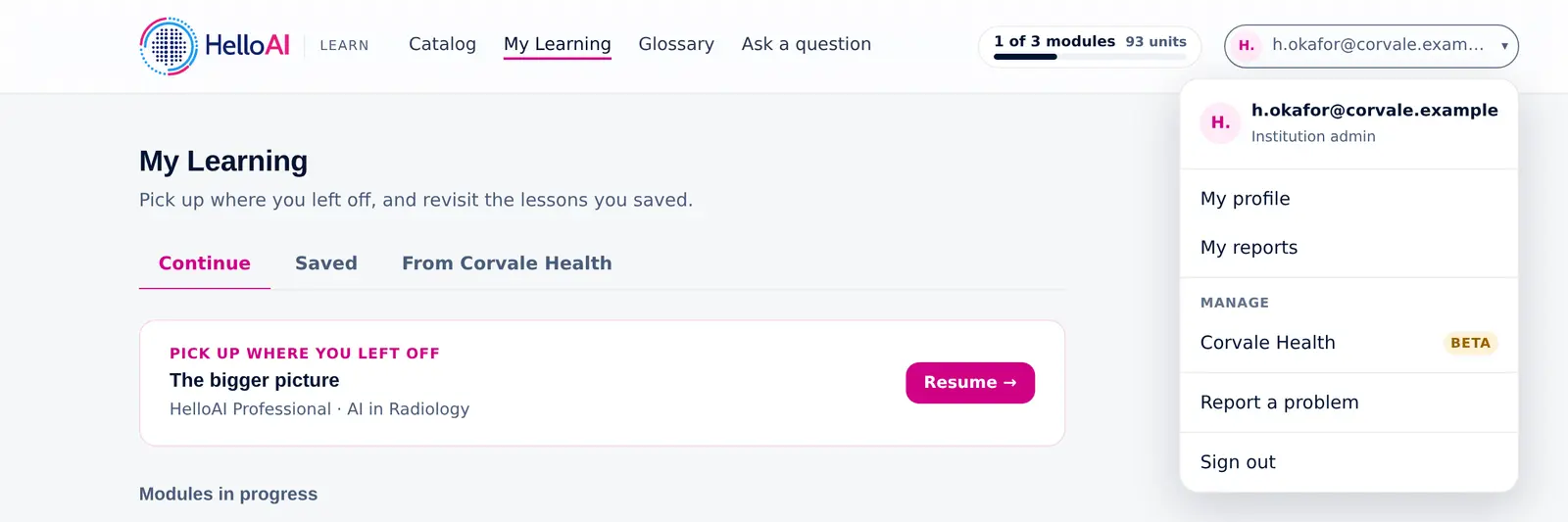
An institution admin signs in to HelloAI in the same way as any learner. The account menu lists the institution under Manage, and one click opens its console.
The console shows that institution and no other. Admins can return to their own learning from the console header at any time.
People are linked by your staff email domain.
Once HelloAI has verified your staff email domain, every confirmed account at that domain is linked to your institution, including people who signed up before you joined.
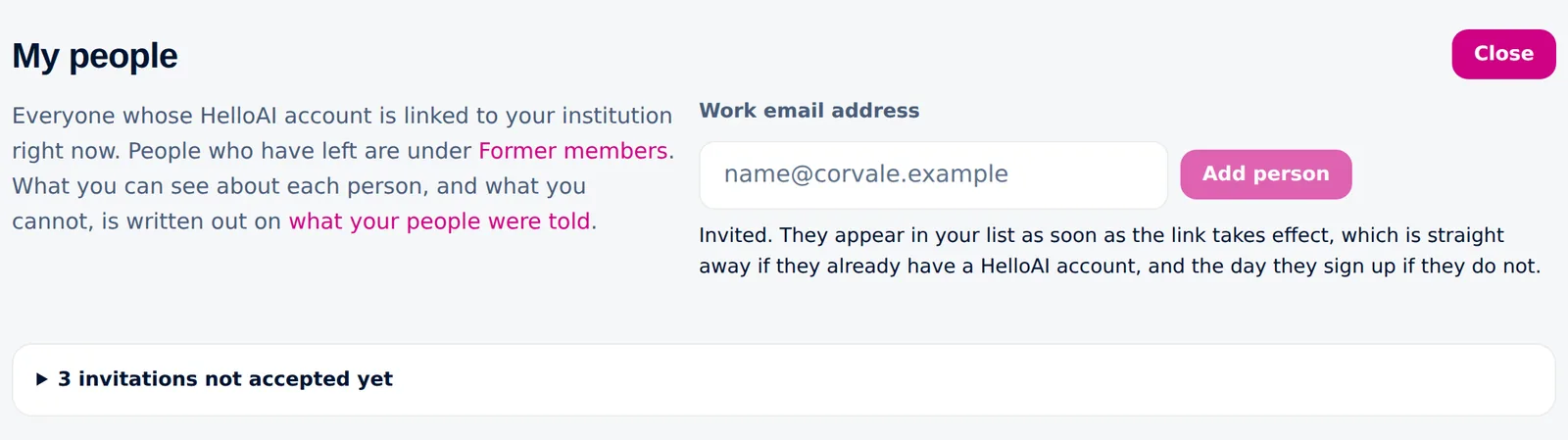
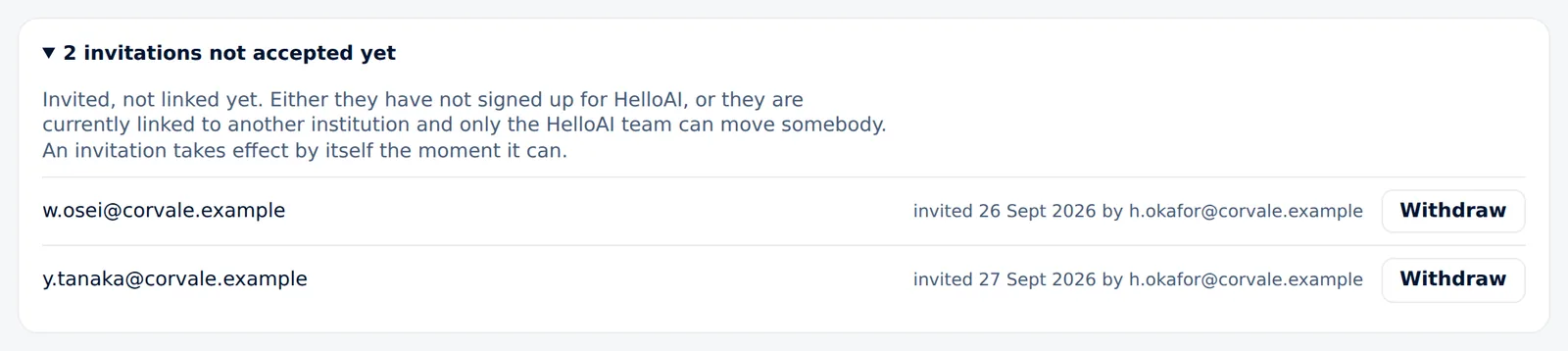
Your admins can also add a colleague at that domain one at a time. The response is the same whether or not the colleague already has a HelloAI account, so the form cannot be used to find out who uses HelloAI. An invitation becomes a link as soon as the person has an account, and it can be withdrawn until then.
When someone leaves, the record stays.
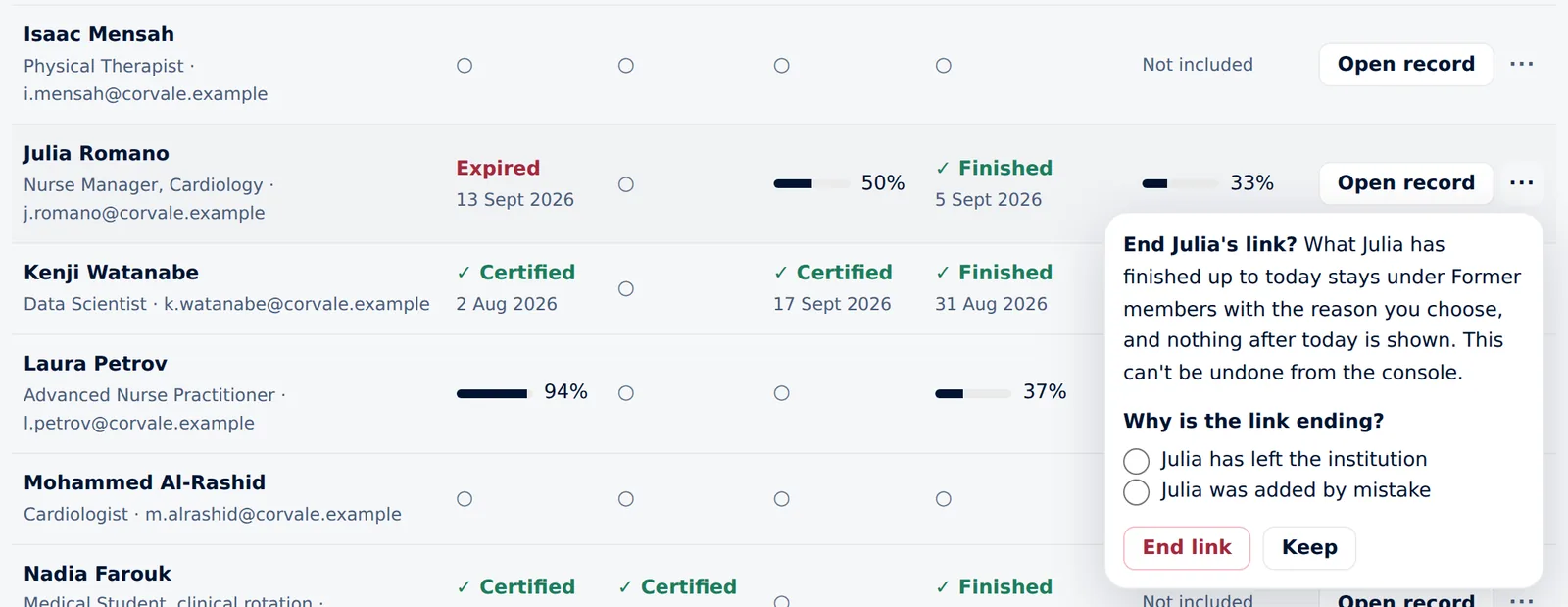
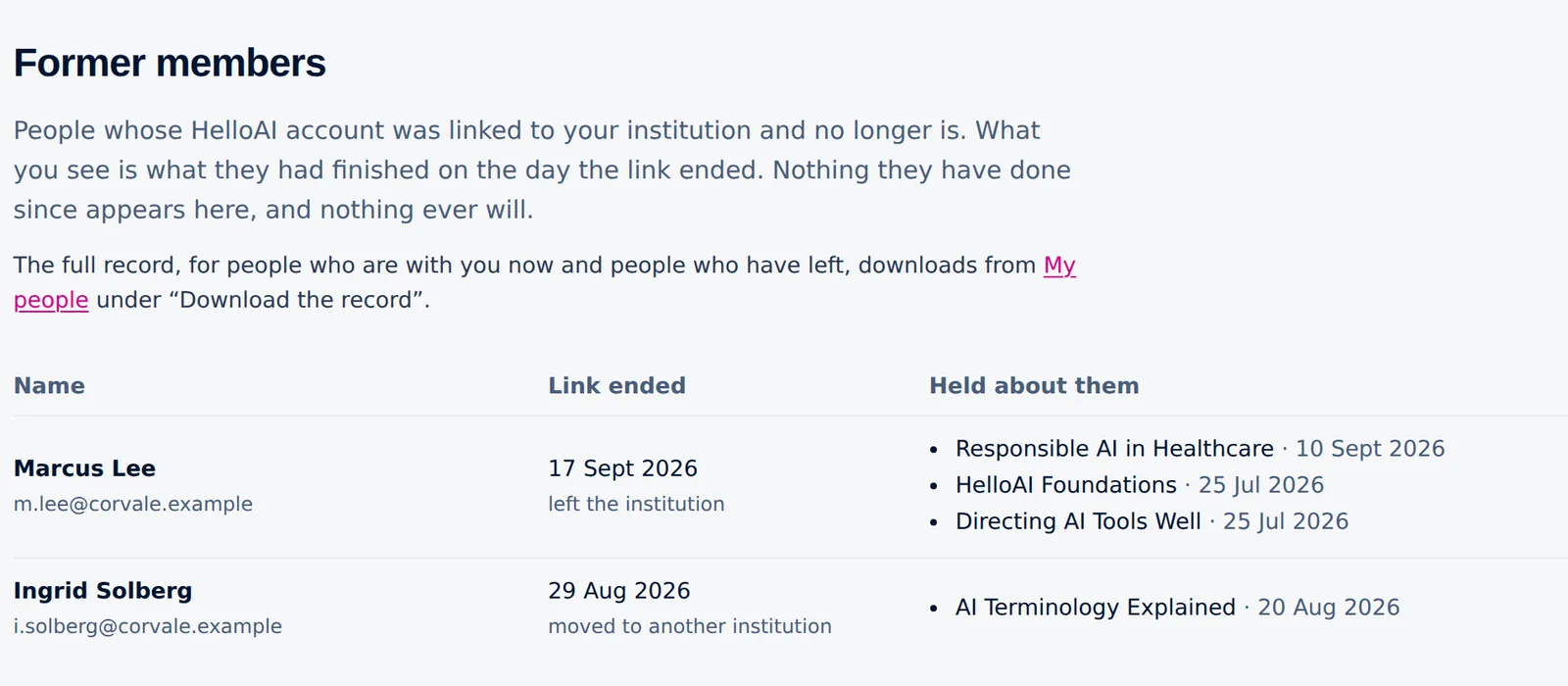
An admin ends the link from the menu on the person's row. The console says what ending it means and asks why: the person has left, or was added by mistake. The reason is kept with the record, and the person moves to Former members. Your institution keeps the record of what they finished up to the day the link ended and sees nothing after it. Moves between institutions are handled by the HelloAI team.
Download the record, on My people, exports every completion your institution holds, for current and former staff, for example for an auditor. Each download is recorded in the activity log.
The console works on a phone.
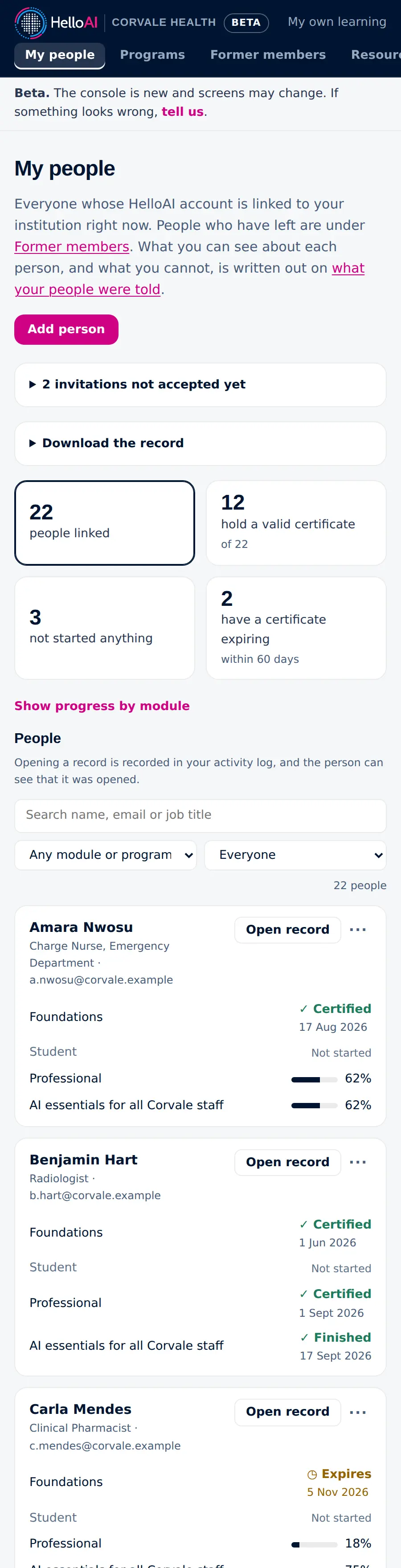
On a small screen the tabs scroll sideways, the tiles stack, the module bars fold behind a button, and each person becomes a card with one line per module. Search and filters work in the same way.
See it for your own institution.
The console is in beta and in use. Request a demo and we will walk you through it, or apply to join the beta and set it up with our team.
Corvale Health, its staff and every figure on this page are fictional.